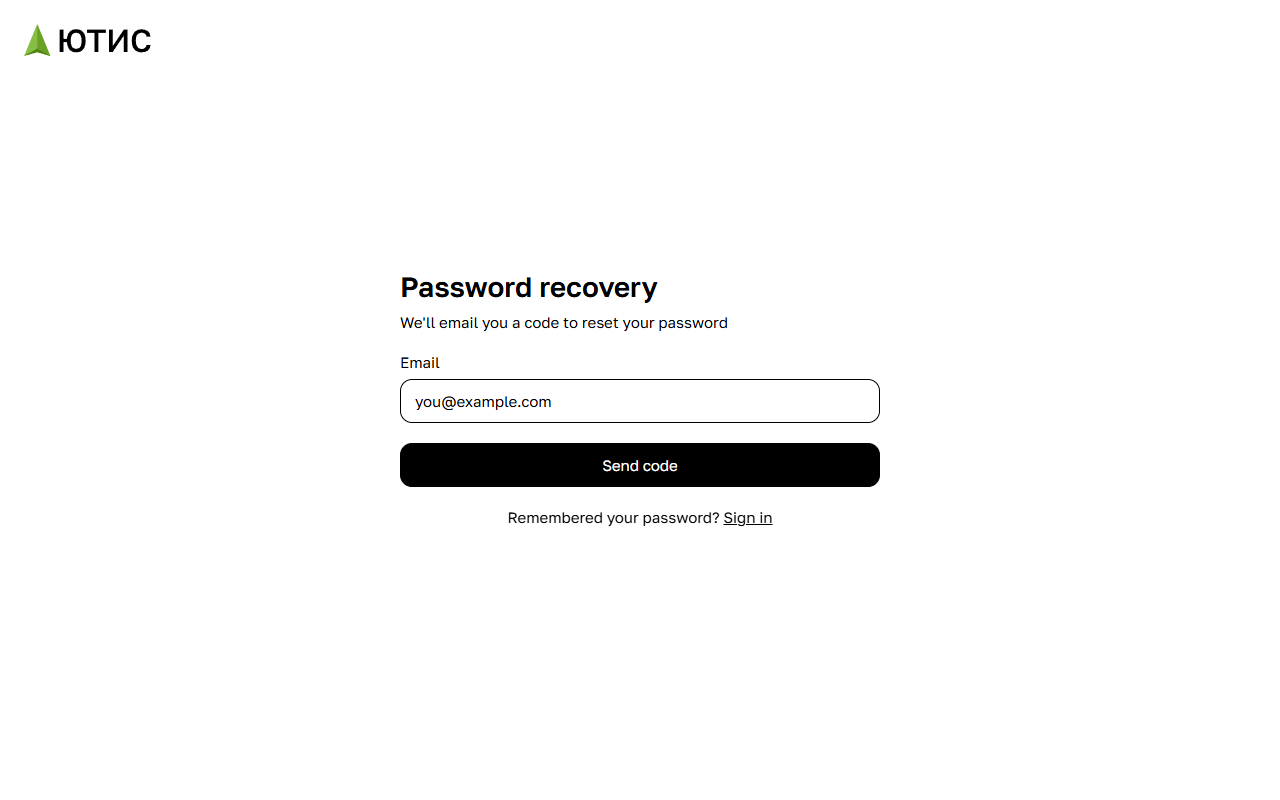
Step 1. Request a code
- On the sign-in page, click Forgot your password? above the password field.
- Enter the address you signed up with in the Email field.
- Click Send code.
Step 2. Enter the code from the email
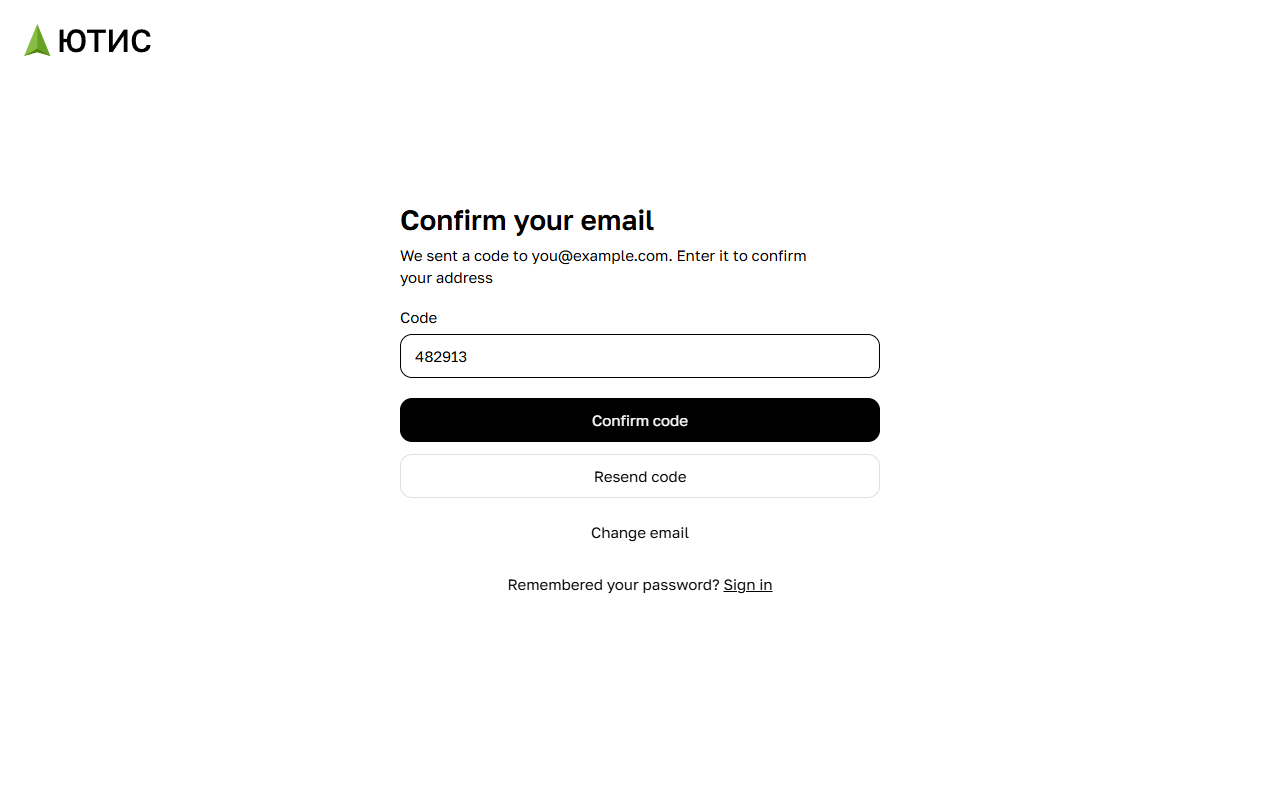
We'll send a six-digit code to that address. Type it into the Code field and click Confirm code.
- No email? Check your spam folder and make sure you entered the address of your YTIS account — codes are only sent to addresses that have one. To get a new code, click Resend code. After that, the button becomes available again in a minute.
- Typo in the address? Click Change email and enter it again.
Step 3. Create a new password
Enter a new password in the Password field. The requirements are the same as when signing up: 8 characters or more and Latin letters only. Click Save password.
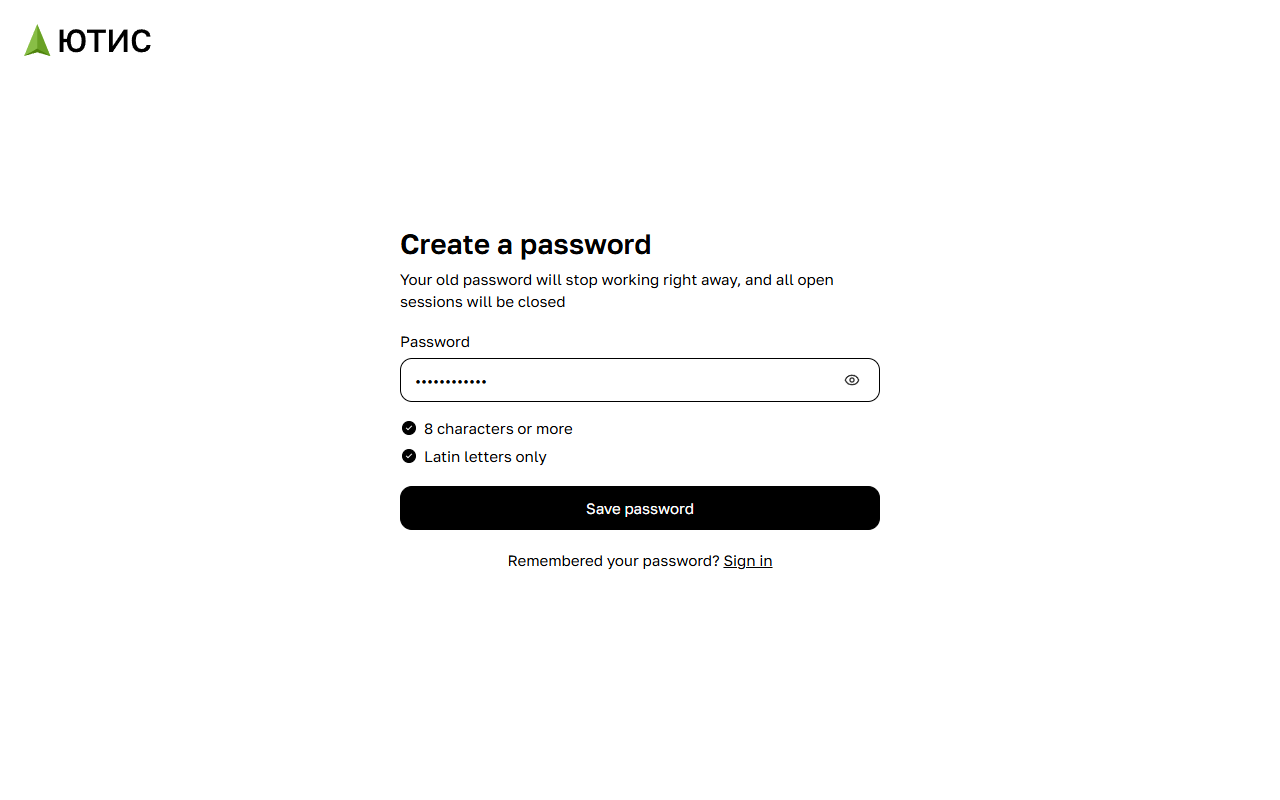
This is when the code is actually checked. If it doesn't match, you'll go back to the code step, and the password you typed will be kept. If the code has expired or you've run out of attempts, you'll see The code is no longer valid — click Request a new one and start over.
After you change your password
You'll see Password changed, and the sign-in page opens a few seconds later — sign in with your new password. The old password stops working right away, and all open sessions are closed, so you'll need to sign in again on your other devices too.