Getting started
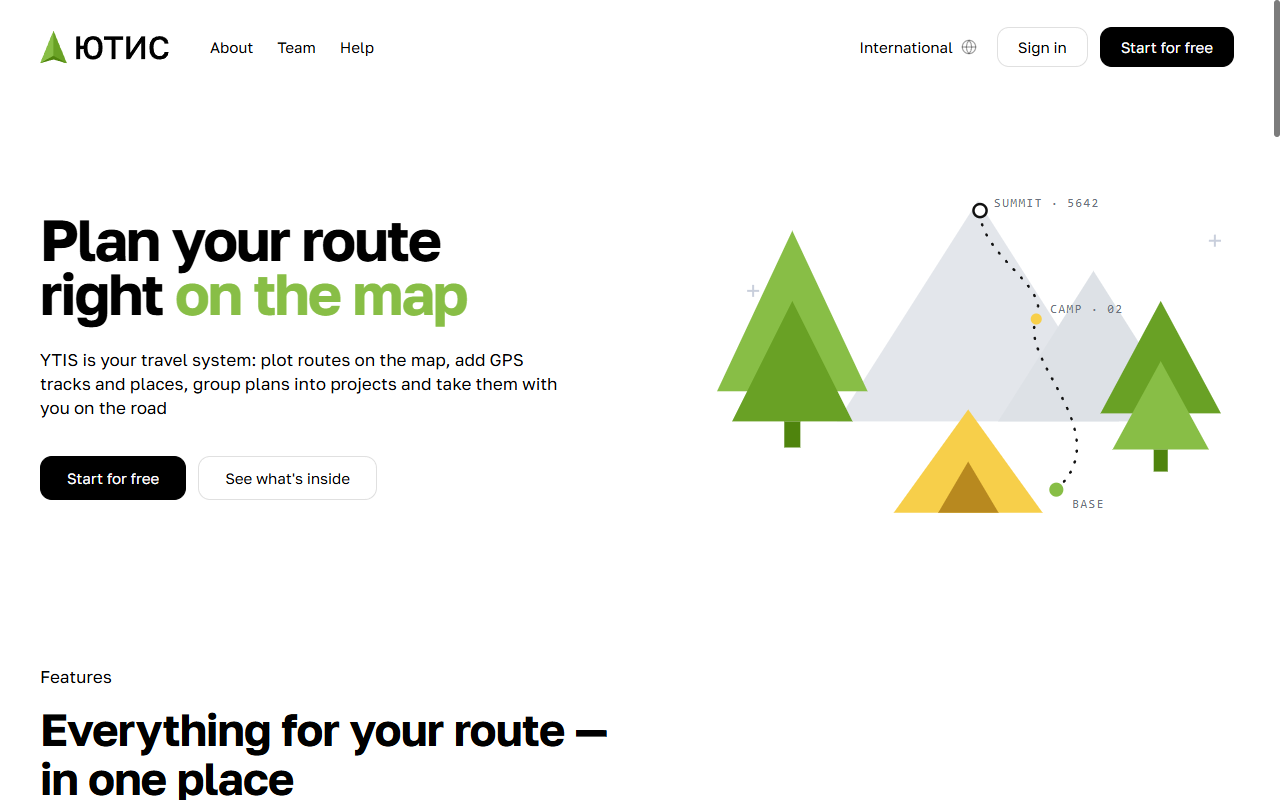
On the ytis.ru home page, click Start for free — it's in the top right corner and under the headline. If you already have an account, click Sign in instead.
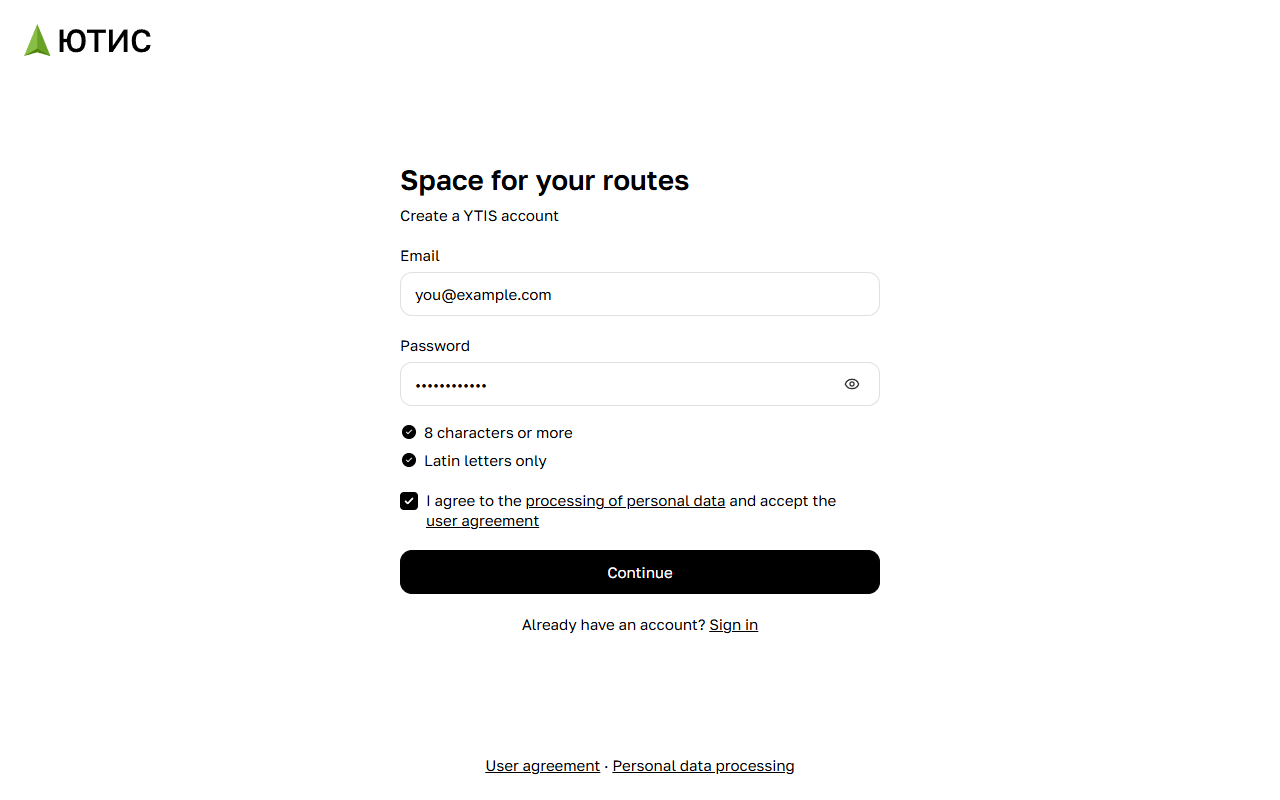
Step 1. Email and password
- Enter your email address in the Email field. We'll send a confirmation code there, and it's also what you'll sign in with.
- Create a password in the Password field. Two requirements are listed below it: 8 characters or more and Latin letters only. Each one gets a check mark once it's met. Numbers and symbols are fine too.
- Tick the box "I agree to the processing of personal data and accept the user agreement". The links open the documents in a new tab.
- Click Continue. The button becomes available once the box is ticked.
To check what you've typed, click the eye icon on the right of the password field.
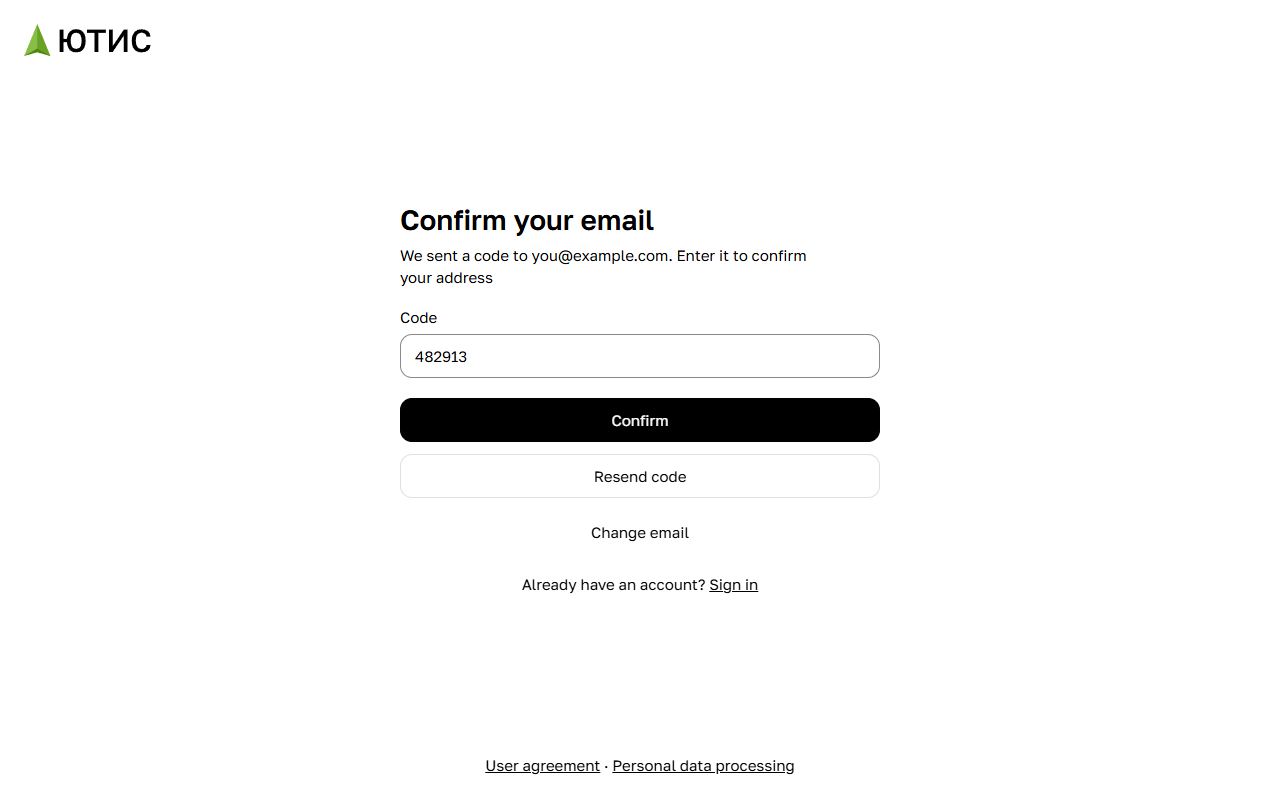
Step 2. Code from the email
We'll send a six-digit code to the address you entered. Type it into the Code field and click Confirm.
- No email? Check your spam folder. If it isn't there either, click Resend code. After that, the button becomes available again in a minute.
- Typo in the address? Click Change email to go back to step 1. Your password and consent will be kept.
- Code not accepted? Make sure you're using the code from the latest email. If it has expired or you've run out of attempts, request a new one.
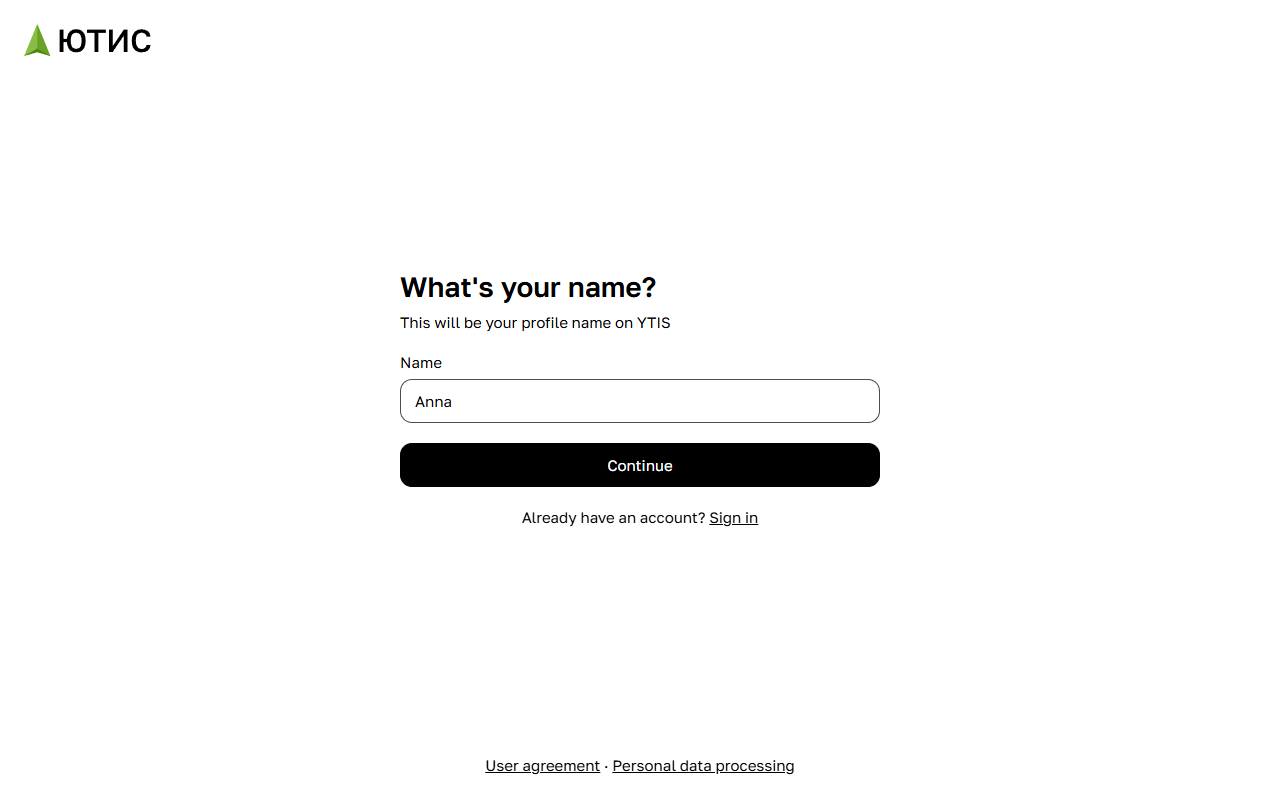
Step 3. Your name
On the What's your name? screen, enter your name in the Name field — it will be shown in your YTIS profile. Click Continue.
That's it: your account is created, you're signed in, and your workspace opens. The interface stays in the language you signed up in. You can change your name and language later in your account settings.
If something goes wrong
- This email is already in use — there's already an account with this address. Sign in to it or reset your password.
- Email confirmation has expired — refresh the page: sign-up starts over from step 1, so go through it again. Sign-up also starts over if you refresh the page halfway through.
- Account created with a Sign in button — your account is ready, we just couldn't sign you in automatically. Click Sign in and enter your email and password.